
How to Secure a WordPress Site Before It Gets Hacked?
How Do You Secure a WordPress Site? Quick Answer
To secure a WordPress site, start with the basics that block the most common risks: keep WordPress, themes and plugins updated, use strong passwords, enable two-factor authentication, choose trusted plugins, use secure hosting and keep regular backups. WordPress itself recommends updates and strong authentication as key security measures.
No single plugin or setting can make a website completely secure. The strongest approach is layered security, protecting your login, software, files, hosting and backups together. The sections below show how to do that without making WordPress security unnecessarily complicated.
Why Are WordPress Websites Targeted by Hackers?
WordPress websites are often targeted because attackers can look for known weaknesses in outdated software, plugins, themes or login credentials. WordPress itself notes that security problems can arise when basic precautions are not followed and recommends keeping the core software, themes and plugins updated.
Common reasons a site becomes easier to attack include:
- Outdated plugins or themes with known vulnerabilities
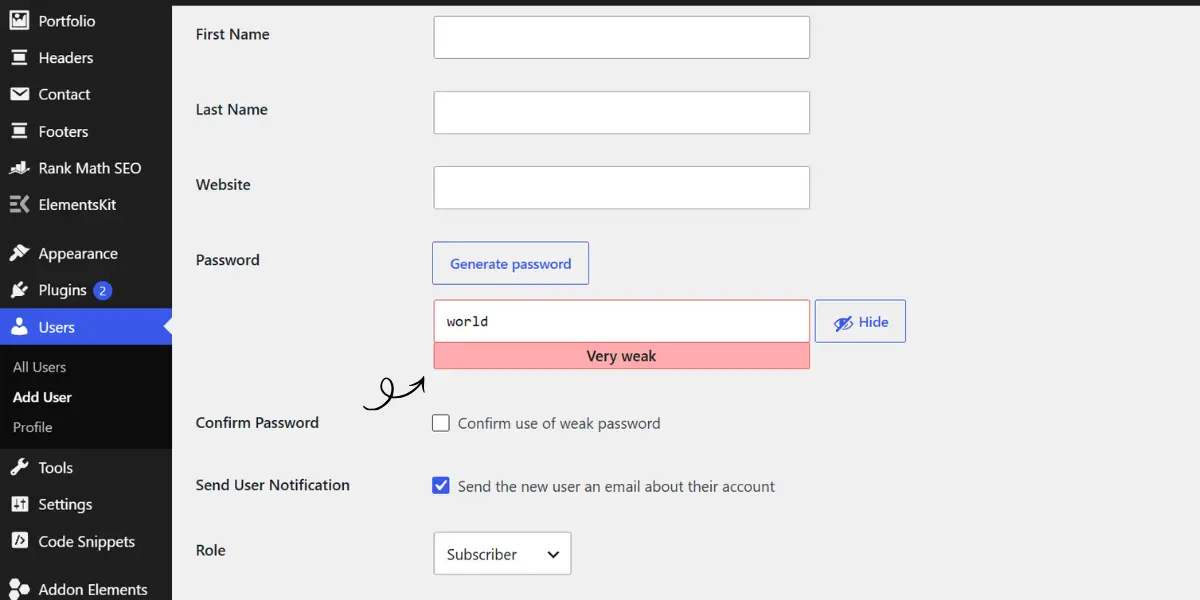
- Weak or reused passwords
- Untrusted themes and plugins
- Poorly protected administrator accounts
- Incorrect file or server configurations
This does not mean WordPress is inherently insecure. In many cases, the risk comes from how the website is configured and maintained, which is why understanding the most common security weaknesses is the next important step.
What Are the Most Common WordPress Security Risks?
Most WordPress security problems come from outdated software, weak access controls, untrusted code or poor server configuration. WordPress itself recommends keeping the platform, themes and plugins updated and using trusted sources.
Outdated WordPress Core, Themes and Plugins
Old versions may contain security weaknesses that have already been discovered and fixed in newer releases. Once details of a vulnerability become public, outdated versions can become easier targets.
Weak Passwords and Stolen Login Credentials
Weak or reused passwords make administrator accounts easier to compromise through brute-force or credential-stuffing attacks. OWASP recommends multi-factor authentication to reduce the risk of stolen credentials being reused successfully.
Vulnerable or Nulled Plugins and Themes
Plugins and themes add useful features, but poorly secured code can introduce vulnerabilities. WordPress specifically advises downloading themes and plugins only from trusted sources such as WordPress.org or reputable companies.
Poor Hosting Security
Your WordPress site also depends on the server it runs on. Outdated server software, weak configurations or poor file permissions can increase security risk even when WordPress itself is maintained properly.
Incorrect User Permissions
Giving every user administrator-level access creates unnecessary risk. WordPress uses roles and capabilities so each person can be given only the permissions they actually need.
Understanding these risks makes the next step much easier: securing each weak point before it becomes an entry point for an attacker.
How to Secure Your WordPress Site Step by Step
Once you know where the risks come from, the next step is to reduce the number of ways an attacker can get into your site.
1. Keep WordPress, Plugins and Themes Updated
Install WordPress core, plugin and theme updates regularly, especially security releases. WordPress calls keeping these components updated one of the most important security practices.
2. Use Strong Passwords and Unique Usernames
Use a long, unique password for every administrator account and avoid predictable admin usernames. A password manager can make strong, unique credentials easier to manage.
3. Enable Two-Factor Authentication
Add 2FA to administrator and other privileged accounts. Even if someone gets your password, they still need the second authentication factor to log in.
4. Limit Login Attempts
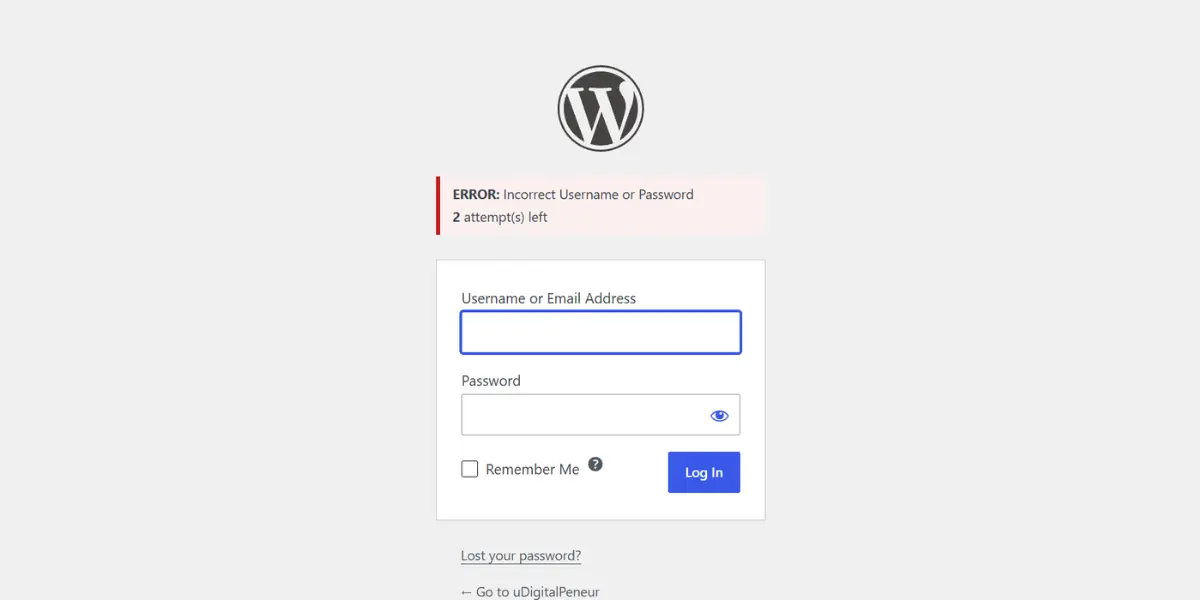
Use rate limiting through your host, firewall or security setup to slow repeated login attempts. WordPress recommends edge or server-level rate limiting where possible because it can block abusive traffic before it reaches WordPress.
5. Remove Unused Themes and Plugins
Do not leave plugins installed if you no longer use them. WordPress specifically recommends deleting unused plugins, which reduces unnecessary code you have to maintain.
6. Install Plugins Only From Trusted Sources
Download plugins and themes from WordPress.org or reputable developers rather than unknown websites or nulled-software sources. WordPress warns against installing themes and plugins from untrusted sources.
7. Set the Right WordPress User Roles
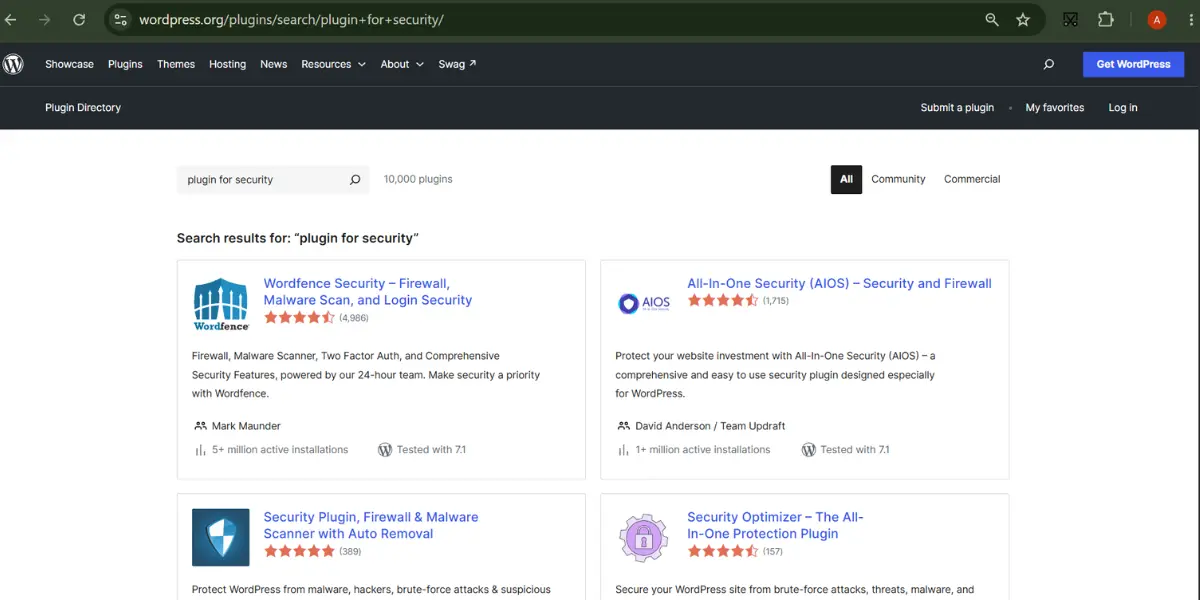
Give each user only the access they actually need. Not everyone who edits content needs Administrator permissions; limiting privileges reduces how much access a compromised account can have. WordPress includes roles and capabilities specifically for controlling user permissions.
8. Protect Important WordPress Files
Sensitive files such as wp-config.php should have appropriate file permissions and should not be unnecessarily accessible. WordPress also allows dashboard file editing to be disabled, which can limit what an attacker can do if an administrator account is compromised.
These steps create a much stronger foundation, but they are only one layer of protection. A firewall, malware monitoring and reliable backups add the next layer, especially for business websites.
Do You Need a WordPress Security Plugin?
A security plugin is not the only thing that keeps WordPress safe, but it can make protection easier by combining several useful features in one place.
For most websites, these are worth considering:
- Wordfence Security — includes a firewall, malware scanner, login security and two-factor authentication.
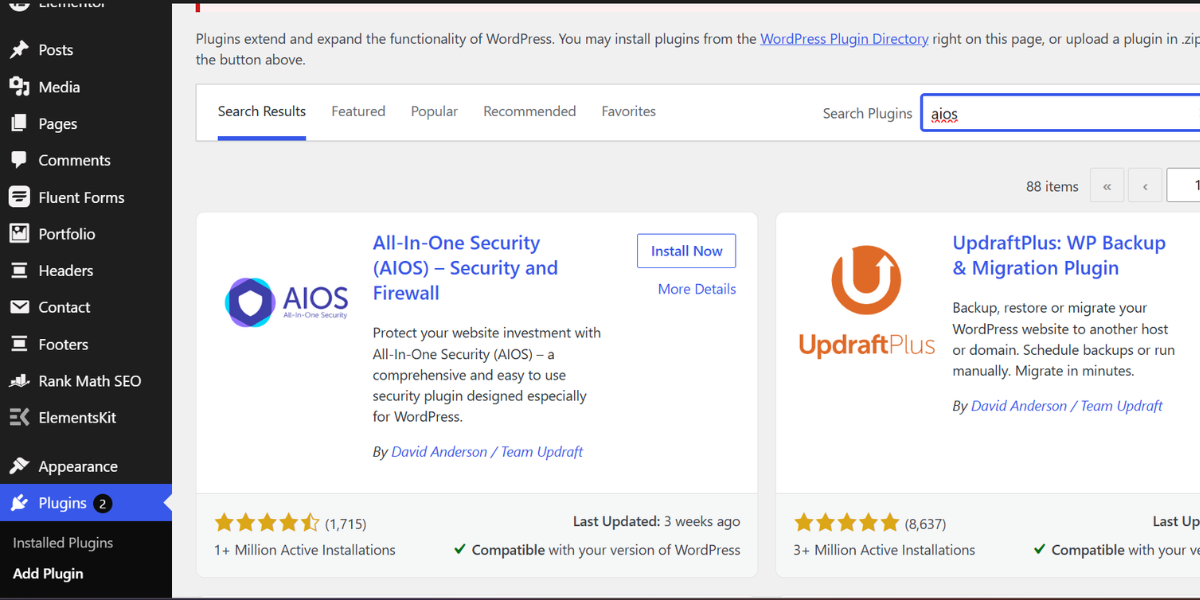
- All-In-One Security (AIOS) — offers firewall protection, login security and 2FA, with additional malware monitoring available in its premium version.
- Kadence Security — useful for login protection, password policies, two-factor authentication and monitoring security events.
What Should a Good Security Plugin Protect?
Look for features such as:
- Firewall protection
- Malware scanning
- Login protection
- Two-factor authentication
- File monitoring
- Security alerts
For many WordPress sites, one well-configured security plugin is enough. Installing several plugins that perform the same security functions can create unnecessary overlap.
A security plugin should support your overall setup, not replace updates, backups, secure hosting and strong login practices.
How Do a Firewall and Malware Scanner Protect WordPress?
A firewall works like a security gate for your WordPress site. It checks incoming traffic and can block suspicious requests, malicious bots and known attack patterns before they cause damage.
A malware scanner checks what is already inside your website. It can detect malicious code, backdoors, suspicious file changes, injected links and unwanted redirects. Some scanners also compare WordPress core, plugin and theme files with their original versions to spot unexpected changes.
Used together, the firewall helps stop threats from getting in, while the scanner helps find threats that may already be present.
How Important Is Secure WordPress Hosting?
Secure hosting is one of the foundations of WordPress security because your website depends on the server environment underneath it.
Even a well-maintained WordPress site can be exposed to unnecessary risk if the server is poorly configured or running outdated software. WordPress recommends choosing a host that takes security seriously and keeps server software updated.
A security-focused WordPress host should ideally provide:
- Regular server updates and security patches
- HTTPS/SSL support
- Server-level firewall or threat protection
- Malware monitoring
- Automatic backups
- Secure file permissions and account isolation
Good hosting cannot replace updates, strong passwords or backups, but it adds an important security layer before threats even reach WordPress.
Does SSL Make a WordPress Website Secure?
SSL/TLS is essential for WordPress security, but it does not make a website fully secure on its own. HTTPS encrypts information sent between a visitor’s browser and your website, helping protect login details, form submissions and other data while it is being transmitted. WordPress strongly recommends HTTPS for protecting both visitors and WordPress logins.
However, SSL does not protect against malware, vulnerable plugins, weak passwords or hacked admin accounts. For proper protection, use HTTPS together with updates, secure logins, a firewall, malware scanning and regular backups.
How Should You Back Up a WordPress Website?
A good WordPress backup should let you restore the entire site quickly if it is hacked, corrupted or accidentally broken. WordPress recommends backing up both the website files and database because you normally need both for a complete recovery.
What Should a WordPress Backup Include?
Your backup should include:
- WordPress database
- Themes and plugins
- Uploaded images and media
- wp-content folder
- Important configuration files such as wp-config.php
The database stores content such as posts and other site data, while your website files contain themes, plugins, uploads and configuration files.
How Often Should You Back Up Your Site?
The right frequency depends on how often your website changes. WordPress suggests weekly backups for smaller, less-active sites and daily backups for high-activity websites. You should also create a backup before major updates or changes.
Where Should You Store Backups?
Do not rely only on a backup stored on the same server as your website. WordPress recommends keeping multiple recent copies in different locations, such as cloud storage and a local device, so one failure does not wipe out every copy.
Most importantly, make sure your backups can actually be restored. A backup is only useful when it works when you need it.
How Can You Protect the WordPress Login Page?
The WordPress login page is a common target for automated brute-force attacks, where bots repeatedly try username and password combinations.
To strengthen it:
- Use two-factor authentication for administrator accounts
- Apply rate limiting to slow or block repeated login attempts
- Make sure wp-login.php and the admin area always use HTTPS
- Consider extra server-level password protection for high-risk admin areas
- Use Application Passwords for integrations instead of sharing your main WordPress password
WordPress specifically recommends HTTPS for protecting login data and supports separate, revocable Application Passwords for external apps and integrations.
Simply hiding or changing the login URL should not be treated as your main security measure. Strong authentication and blocking abusive login attempts provide more meaningful protection.
How Can You Secure the WordPress Database and Files?
Your WordPress database and files contain login details, website settings, content and configuration data, so they should not be left unnecessarily exposed.
To protect them:
- Set proper file and folder permissions
- Protect sensitive files such as wp-config.php
- Use a strong, unique database password
- Give the database user only the permissions it actually needs
- Disable dashboard file editing if it is not required
- Keep reliable backups before making server-level changes
WordPress specifically recommends stricter permissions for sensitive files such as wp-config.php, which contains database connection details.
Avoid changing advanced permissions or database settings without knowing what they do. Over-restricting the wrong files can break your website just as easily as weak permissions can expose it.
How Do You Know If Your WordPress Site Has Been Hacked?
A hacked WordPress site does not always go offline. Sometimes the warning signs are small changes, strange behaviour or activity you did not create. WordPress recommends checking the symptoms carefully because different compromises can appear in different ways.
Unexpected Website Changes
Watch for new pages, altered content, unfamiliar links, pop-ups or design changes that nobody on your team made.
Unknown Admin Users
Check Users → All Users for administrator accounts you do not recognise. An unfamiliar admin account can mean someone has gained access to your website.
Traffic or Ranking Drops
A sudden drop in organic traffic or rankings can sometimes happen when a hacked site starts showing spam pages, malicious content or redirects. However, a traffic drop alone does not prove your site has been hacked.
Security and Malware Warnings
Take browser, hosting or security-tool warnings seriously. Run a malware scan if you see alerts about infected files, suspicious code or unexpected file changes.
Strange Redirects or Spam Pages
If visitors are unexpectedly sent to another website or Google starts showing spam pages you never created, your site may be compromised. Malicious redirects and SEO spam are common symptoms security scanners are designed to detect.
If you notice several of these signs together, do not wait for the problem to get worse. The next step is to confirm the compromise and begin a careful recovery process.
What Should You Do If Your WordPress Website Gets Hacked?
If your WordPress website has been hacked, the first step is to stay calm and avoid making random changes. Quick actions can prevent further damage and help you recover your website safely.
Follow these steps:
1. Take Your Website Offline Temporarily
If possible, put your website into maintenance mode to prevent visitors from seeing malicious content and reduce the risk of spreading malware.
2. Change All Passwords
Immediately update passwords for:
- WordPress admin accounts
- Hosting account
- Database users
- FTP/SFTP accounts
- Email accounts connected to your website
Also remove any unknown administrator accounts.
3. Identify and Remove the Malware
Scan your website using a trusted security tool to find:
- Infected files
- Suspicious code
- Unknown scripts
- Malicious redirects
Avoid deleting files randomly because some infected files may be part of your website’s core functionality.
4. Restore a Clean Backup
If you have a recent clean backup, restoring it can be the fastest recovery option. After restoration, update WordPress, plugins and themes to close the weakness that caused the attack.
5. Find the Entry Point
A hacked website is usually a symptom of an underlying issue. Check for:
- Outdated plugins or themes
- Weak user accounts
- Compromised hosting access
- Untrusted code
Fixing the original vulnerability is important to prevent another attack.
6. Request a Security Review
After cleaning the website, run a complete security check and monitor your website for unusual activity.
The goal is not only to recover your WordPress site but also to make sure the same security problem does not happen again.
How Often Should You Perform a WordPress Security Check?
A WordPress security check should be performed regularly, not only after your website shows signs of a problem. The right frequency depends on how often your website changes, how many users have access and how important the website is for your business.
For most business websites, a monthly security review is a good starting point. However, websites that handle frequent updates, customer data, online payments or multiple user accounts should be checked more often.
A simple security schedule can look like this:
| Security Task | Recommended Frequency |
| Check for WordPress, theme and plugin updates | Weekly |
| Review admin users and permissions | Monthly |
| Run malware/security scans | Weekly or monthly |
| Check backups are working correctly | Monthly |
| Complete security audit | Every 3–6 months |
During a security check, review important areas such as:
- Unknown users or suspicious login activity
- Outdated plugins and themes
- Failed login attempts
- Malware or unusual file changes
- Backup availability
- Website performance or unexpected changes
Regular security checks help you identify small issues before they become serious problems. A website that is monitored and maintained consistently is much easier to protect than one that is only reviewed after it has already been compromised.
WordPress Security Checklist Before You Go Live
Before launching your WordPress website, complete a final security review to make sure there are no unnecessary risks, weak settings or unfinished configurations.
A pre-launch security checklist helps you identify problems early and gives your website a safer foundation from the beginning.
WordPress Security Checklist
| Check | What to Confirm |
| Admin accounts | Remove unused accounts and confirm every user has the correct access level |
| Website settings | Review important WordPress settings before making the site public |
| Plugins and themes | Delete unused items and make sure only required software is active |
| User access | Confirm only trusted people have website access |
| Website files | Check that sensitive files and folders are properly protected |
| Backup system | Confirm a working backup and restore process is available |
| Security monitoring | Make sure alerts or monitoring tools are active |
Before Launch, Also Check:
- Test all website forms to ensure they are working correctly
- Confirm HTTPS is active across all pages
- Remove default WordPress content, unused accounts and sample files
- Check that your website does not contain test pages or temporary login details
- Review website permissions and access settings
A secure launch is not about adding dozens of security tools. It is about making sure the basics are correctly configured before your website starts receiving real visitors.
Once your WordPress site goes live, regular maintenance and monitoring become the key to keeping it protected over time.
WordPress Security Mistakes You Should Avoid
Many website owners think WordPress security is only about installing a security plugin or adding more protection tools. In reality, security problems often happen because of poor maintenance, careless access management or ignoring small warning signs.
Avoiding these common mistakes can help you keep your website more secure and easier to manage.
1. Ignoring Regular Website Maintenance
A WordPress website is not a one-time setup. It requires ongoing monitoring and maintenance.
Ignoring your website for months can allow small issues to become bigger security problems. Regular reviews help identify unusual activity, outdated settings or configuration problems before they affect your website.
2. Keeping Unused Accounts Active
Old employee accounts, developer access or temporary user profiles can become unnecessary entry points if they are no longer needed.
Remove accounts that are not required and regularly review who has access to your website.
3. Making Major Changes Without Testing
Changing themes, installing new features or modifying website files without proper testing can create unexpected security and functionality issues. Before making major theme changes, it is also important to understand theme changes and SEO and how they can affect website performance.
Always test important changes in a safe environment before applying them to a live website.
4. Giving Permanent Access to External Users
Developers, freelancers or agencies may need temporary access to complete a task, but leaving that access active forever increases risk.
Remove temporary accounts once the work is completed and keep access limited to what is necessary.
5. Ignoring Security Alerts and Warnings
Security notifications, unusual login activity or website warnings should not be ignored.
Early action can prevent a small issue from becoming a serious compromise that affects your website, reputation or search visibility.
6. Assuming Small Websites Are Not Targets
Many small business owners believe hackers only target large companies. In reality, automated attacks often scan thousands of websites looking for common weaknesses.
Website size does not determine security risk, proper maintenance and protection do.
7. Not Having a Recovery Plan
Many businesses think about security only after something goes wrong. Without a clear recovery process, fixing a hacked website can take longer and cause more downtime.
Knowing who will handle the issue and what steps to take during an incident can make recovery much easier.
WordPress security is not about adding unlimited tools, it is about making smart decisions, maintaining your website regularly and reducing unnecessary risks before they become problems.
Final Verdict: How Secure Can a WordPress Website Be?
A WordPress website can be very secure when it is properly configured, maintained and monitored. Most security issues do not happen because of WordPress itself, but because of poor maintenance, weak management or ignored risks.
The best approach is to follow a layered security strategy, reduce unnecessary risks, monitor your website regularly and have a clear plan if something goes wrong.
WordPress is a reliable platform for businesses of all sizes. However, the security and performance of a website also depend on how it is built, configured and maintained. Businesses looking to create a secure foundation can explore professional WordPress development services to build a website that is optimized for long-term growth.
WordPress Security Questions Website Owners Usually Ask
1. How often should I back up my WordPress website?
The frequency depends on how often your website changes. Most business websites should have weekly backups, while websites with regular updates, online stores or frequent transactions may need daily backups.
Always create a backup before major changes such as updates, theme changes or plugin installations.
2. Can I password protect a WordPress site?
Yes, you can password protect a WordPress site or specific pages to restrict access. This can be useful for private websites, client previews, staging sites, or members-only content.
However, password protection should be used as an access control method, not as a complete security solution. A fully protected WordPress website still requires proper maintenance, secure hosting, regular updates and safe user management.
3. What is the best security for WordPress?
The best security for WordPress is a layered approach rather than relying on a single tool. A secure website combines strong login protection, regular maintenance, reliable hosting, monitoring and backups.
Important security measures include:
– Keeping WordPress, themes and plugins updated
– Using strong passwords and two-factor authentication
– Installing plugins and themes only from trusted sources
– Choosing secure WordPress hosting
– Monitoring for malware and suspicious activity
– Maintaining regular backups
No single security plugin can protect a website from every threat. The strongest protection comes from combining multiple security practices and maintaining them consistently.
4. What are the first signs of being hacked?
The first signs of a hacked WordPress website can include unexpected changes, unusual activity or warnings that something is wrong.
Common signs include:
– Unknown admin accounts appearing on your website
– Strange redirects or spam pages
– Unexpected changes to website content or design
– Security warnings from browsers or hosting providers
– Sudden drops in traffic or search rankings
– Unusual login attempts or suspicious activity
If you notice these signs, investigate quickly and scan your website to prevent further damage. Early detection can make recovery easier and reduce the impact on your website.
